Odoo Stripe Terminal Integration: Simple & Secure Card Payments
Overview
Unlock the power of in-person payments directly from your Odoo backend with our Stripe Terminal Integration. This module empowers you to process payments for Customer Invoices and Sales Orders using physical card readers like the WisePOS E and Stripe S700, without ever leaving the Odoo interface. Experience a streamlined workflow with features like Backend Payment Processing, real-time transaction status updates via webhooks, and Automated Data Syncing with Odoo Accounting. It allows users to collect payments from customers in person using Stripe's physical terminal readers.
Hot Features
◆ Backend Invoice & SO Payments
◆ Physical Stripe Reader Support
◆ Simulated Reader for Testing
◆ Real-Time Payment Status Updates
◆ Import Stripe Terminal Locations
◆ Full and Partial Payments
◆ Process Refunds From Odoo
◆ Auto-Confirm on Successful Payment
◆ Quick API Key Setup
Features
◆ Process payments for posted invoices and sales orders directly from the Odoo backend.
◆ Utilize a built-in simulated reader to test the complete payment workflow without requiring any physical hardware.
◆ Test API connection before use.
◆ Receive instant, real-time payment status updates in Odoo for success, failure, or cancellation via Stripe webhooks.
◆ Initiate full or partial refunds directly from the original payment transaction record within Odoo.
◆ Easily import and sync all your physical terminal locations from your Stripe dashboard into Odoo with one click.
◆ Support Community and Enterprise Editions
◆ Easy to use.
Work Flow
- Navigate to Accounting >> Configuration >> Payment Providers and enable the Stripe provider.
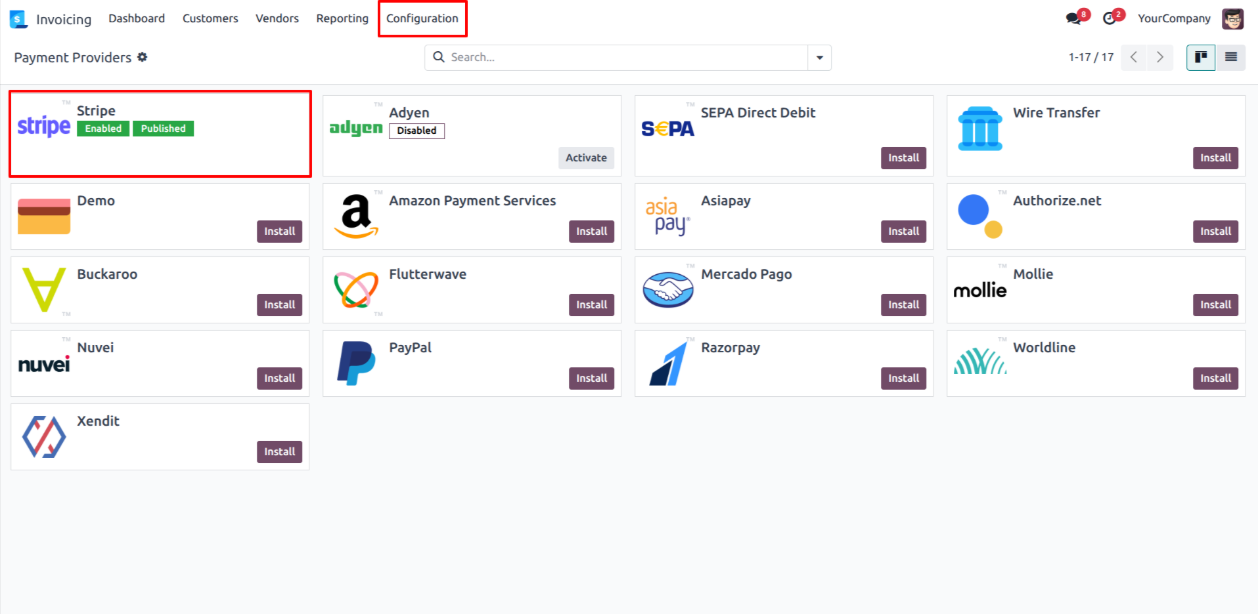
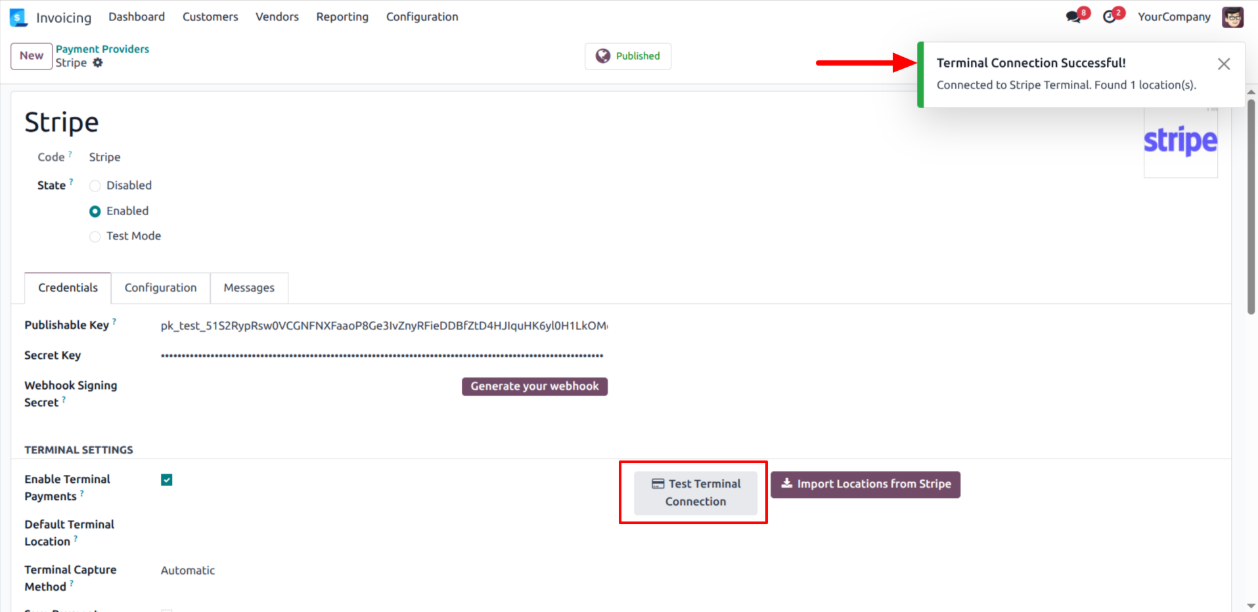
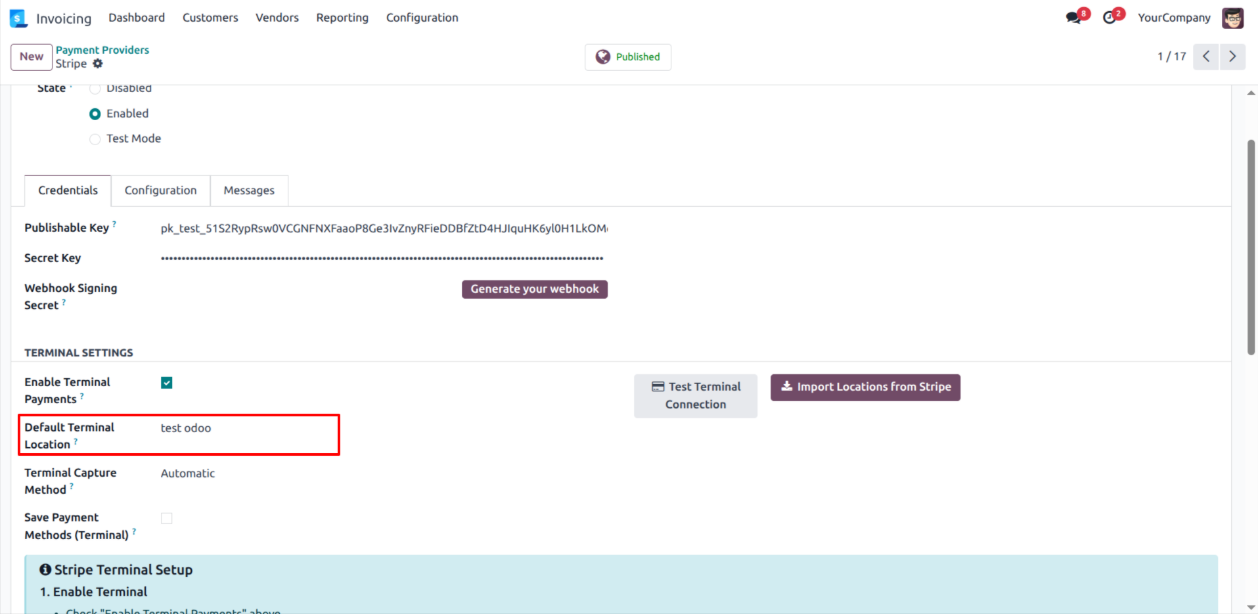
- Fill in your Stripe Publishable and Secret keys.

- Check the Test Terminal Connection.
- After that click Import Locations from Stripe on the payment provider page to sync them automatically.
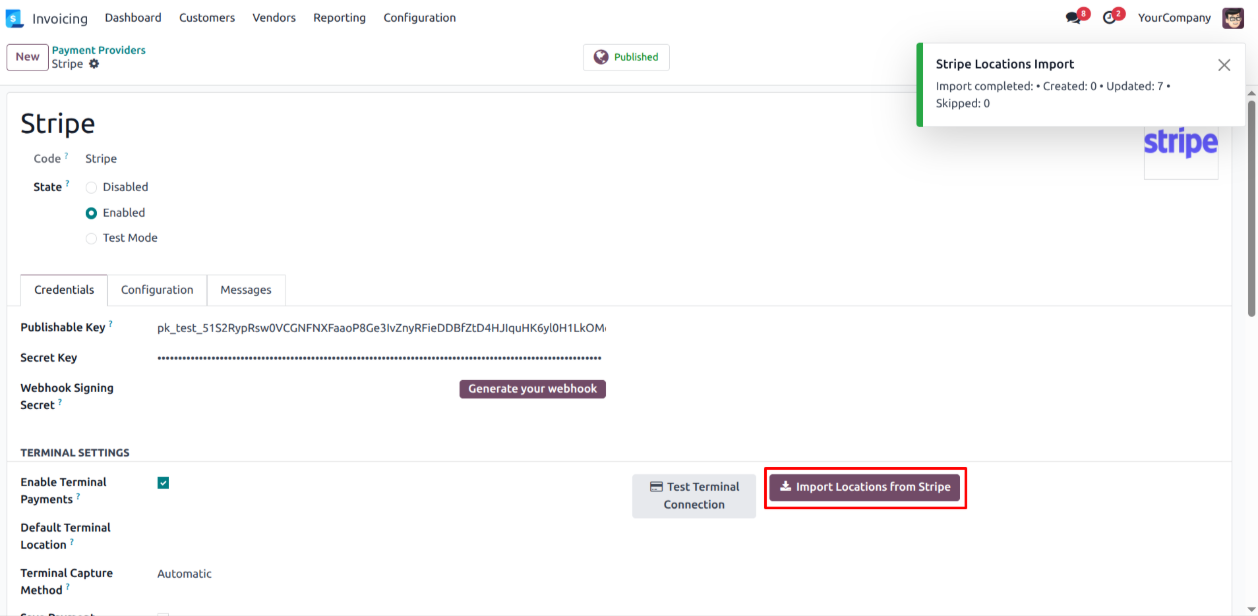
- Check Locations Or You can either create locations manually.
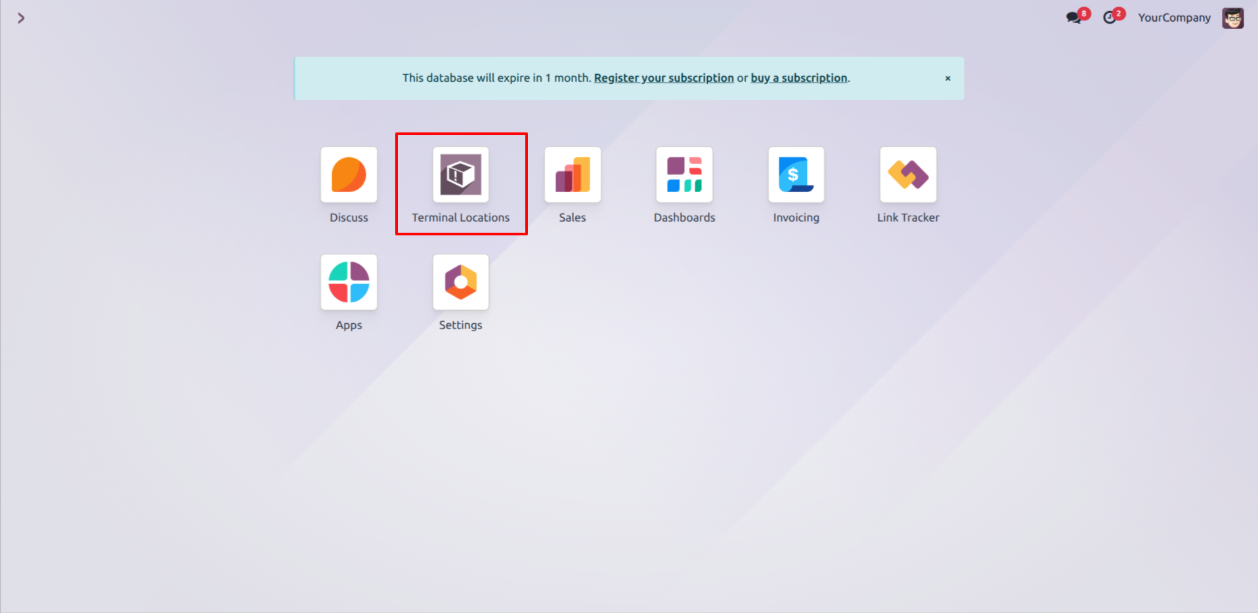
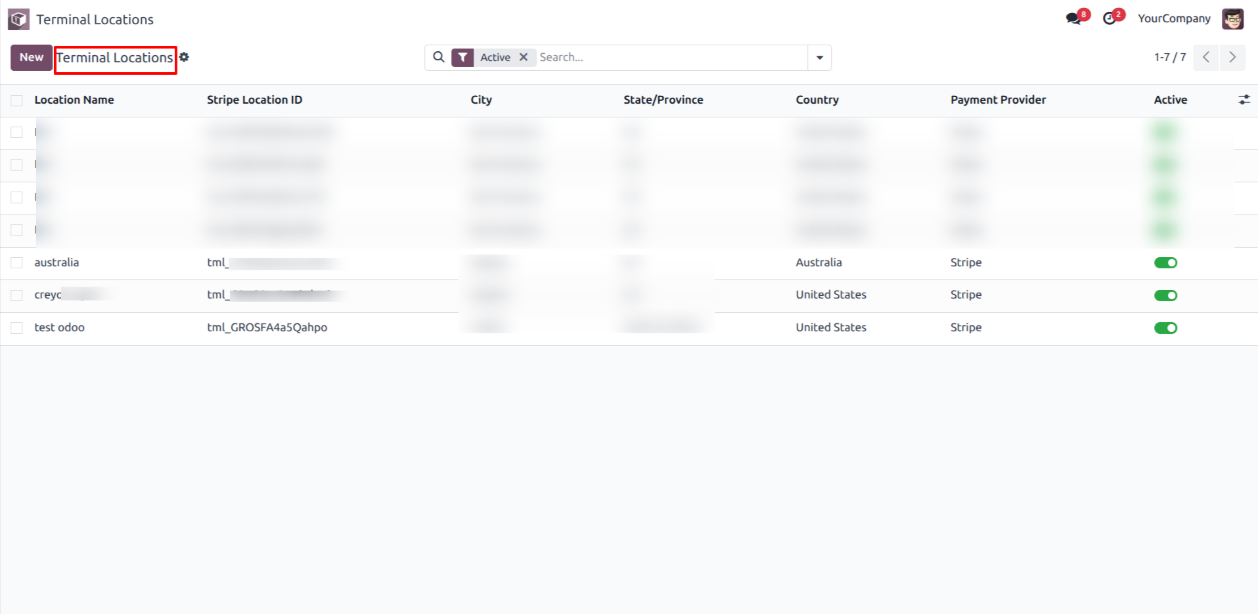
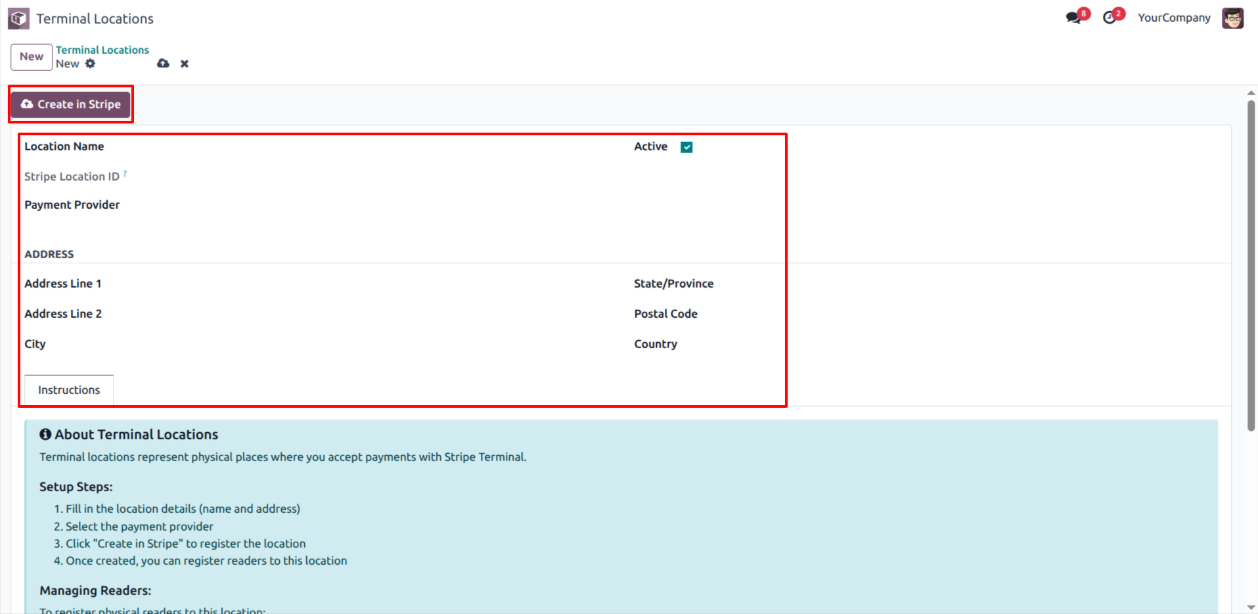
- Now also you may select a default terminal location on the stripe provider configuration page.
- Open a posted customer invoice. a Stripe Terminal payment button will be visible.
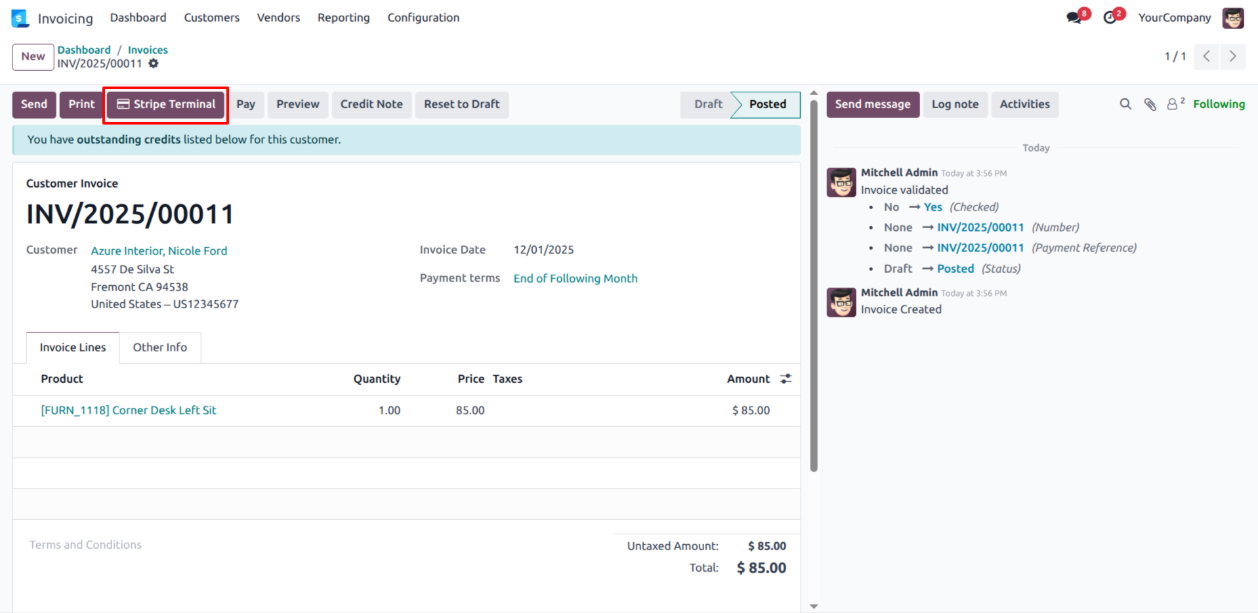
- Clicking the button launches a payment wizard, pre-filled with the customer and the invoice's outstanding amount.

- Choose between a full or partial payment, select the terminal location, and specify the reader ID (or use the simulated reader for testing).
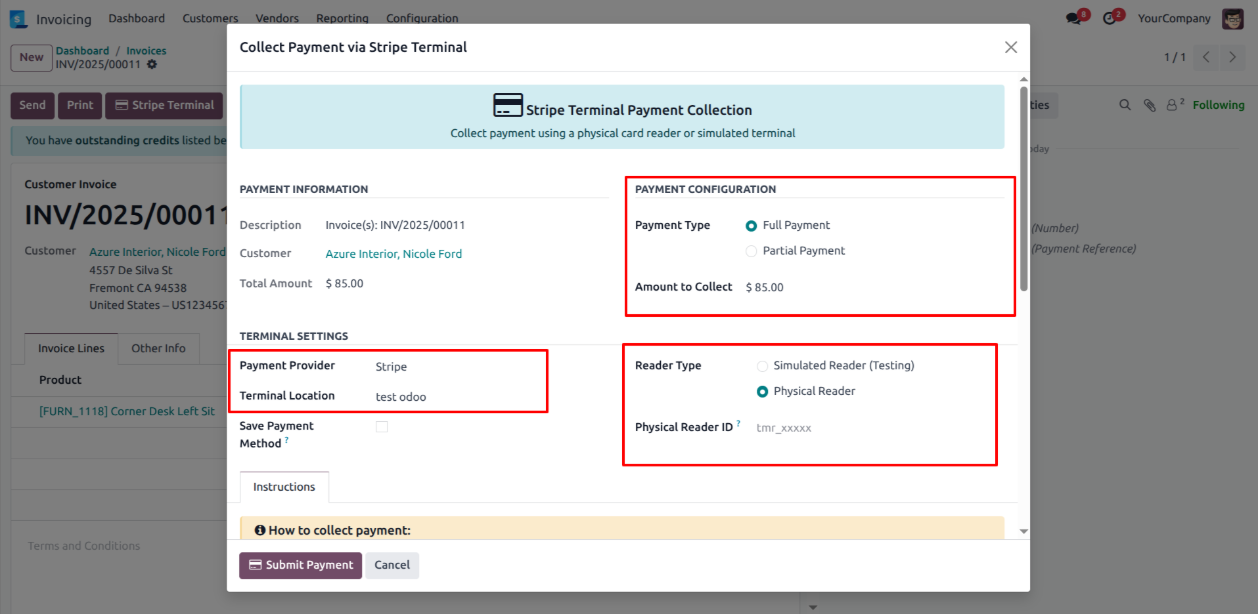
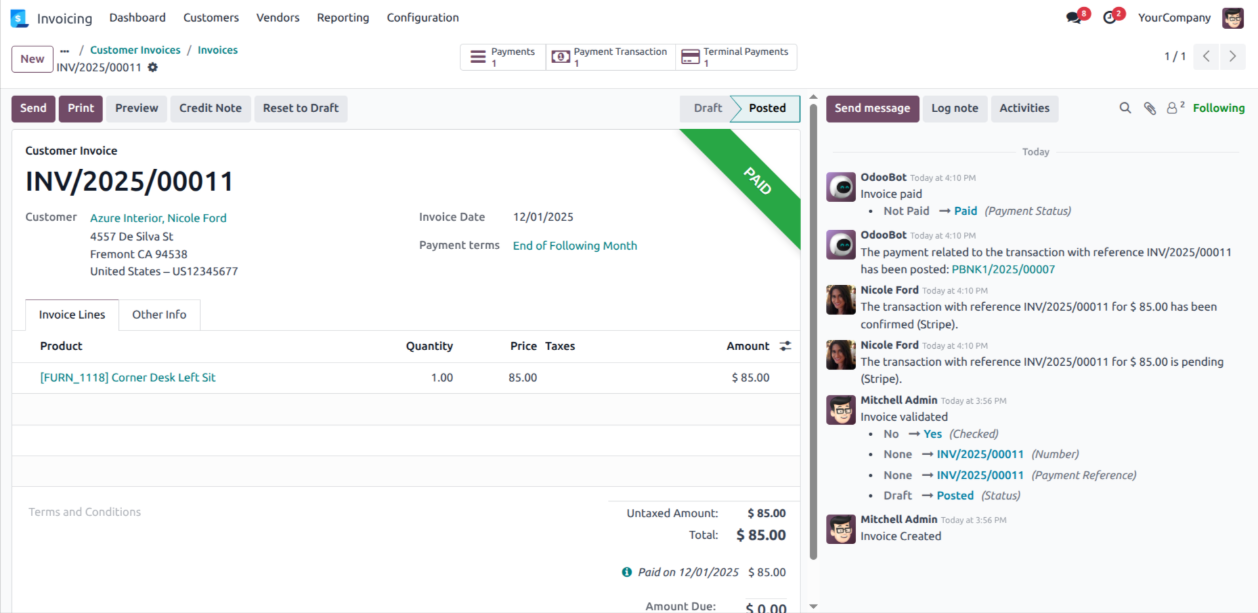
- When you submit, a payment transaction is created in Odoo, and a payment request is sent to the selected physical terminal. Now When fully payment received the transaction will get created in Odoo and payment state of transaction will updated & captured automatically.
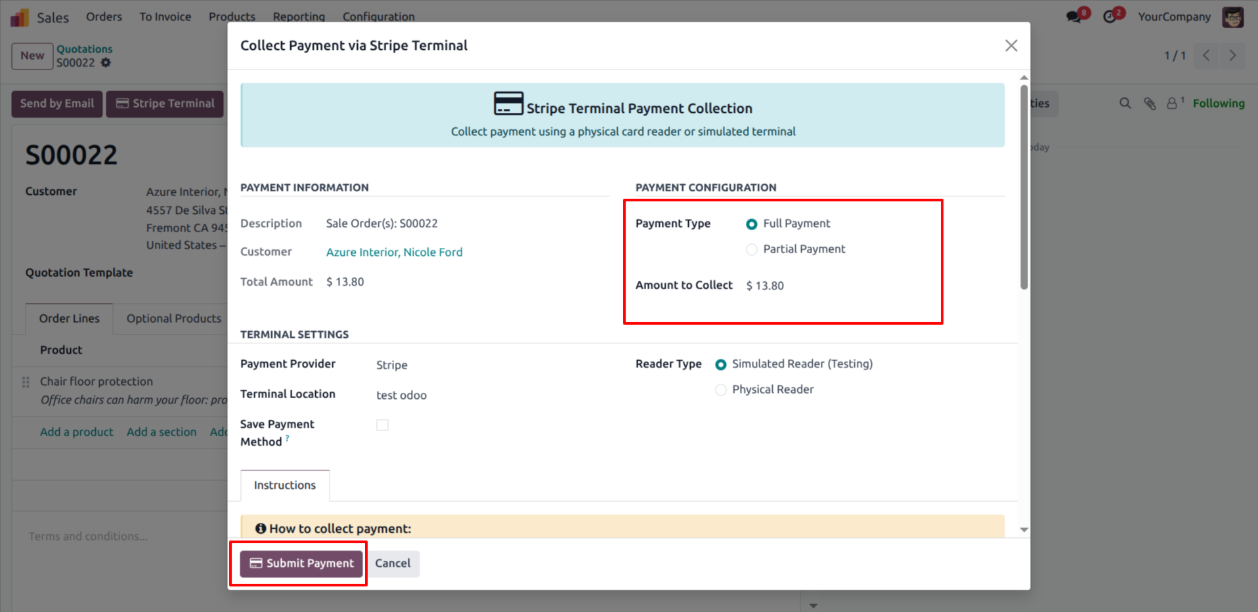
- Also, on a sales quotation or order, click the stripe terminal button.
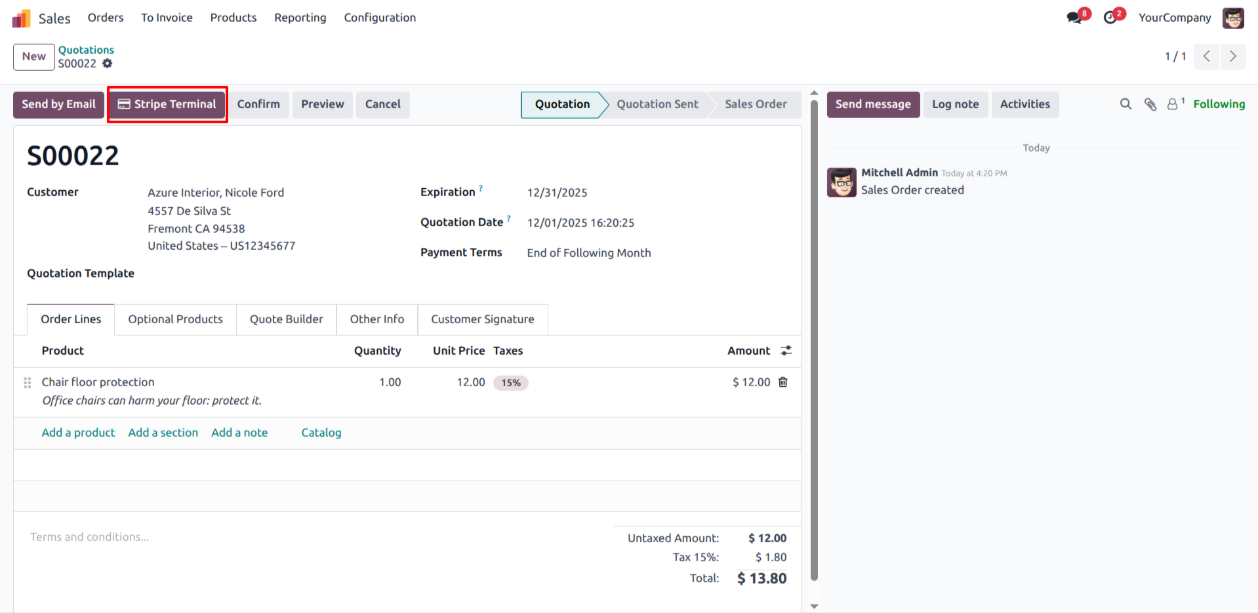
- The payment wizard appears, allowing you to select the amount and terminal reader. Submitting the payment creates a payment transaction in Odoo and sends a payment request to the selected physical terminal.
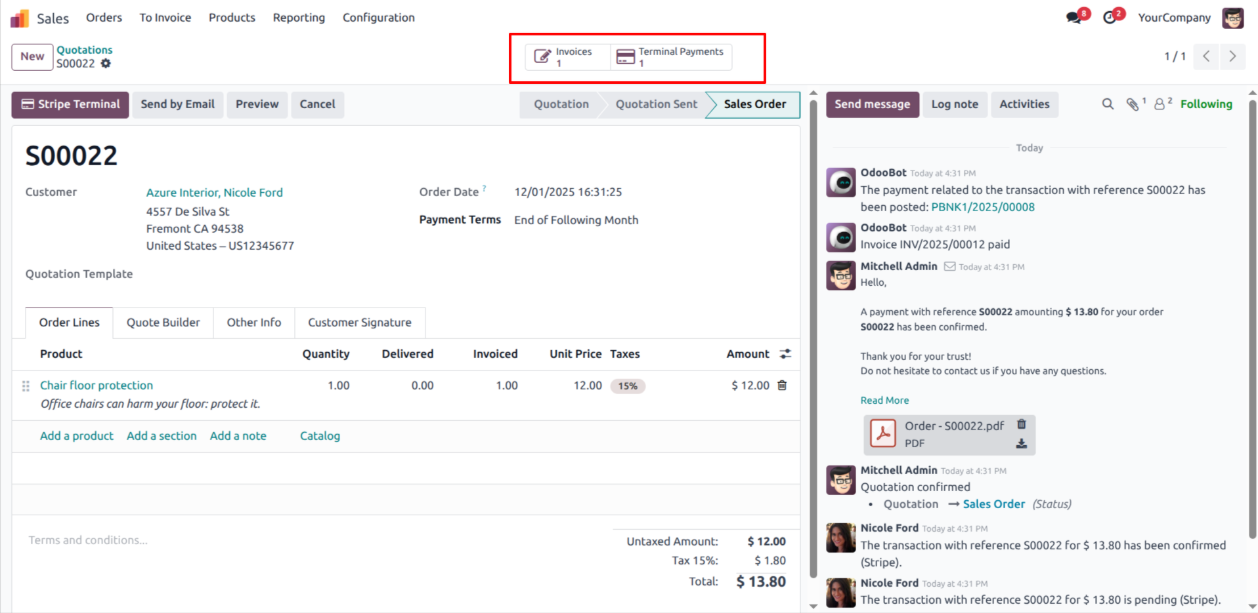
- The successful transaction automatically confirms the SO, creating the invoice and reconciling the payment against it.
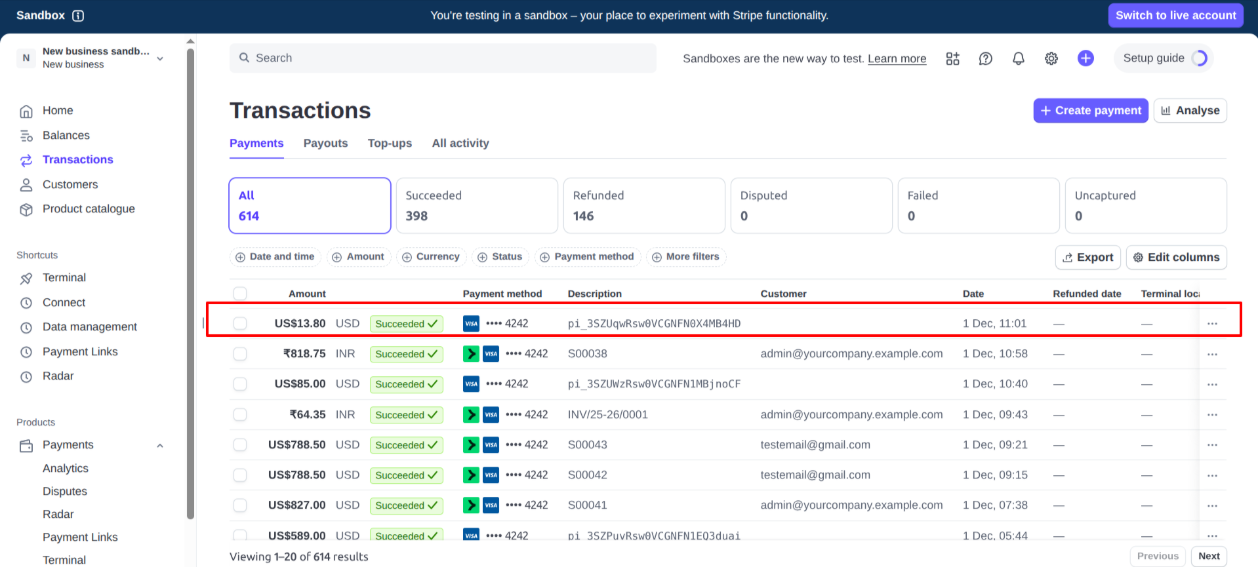
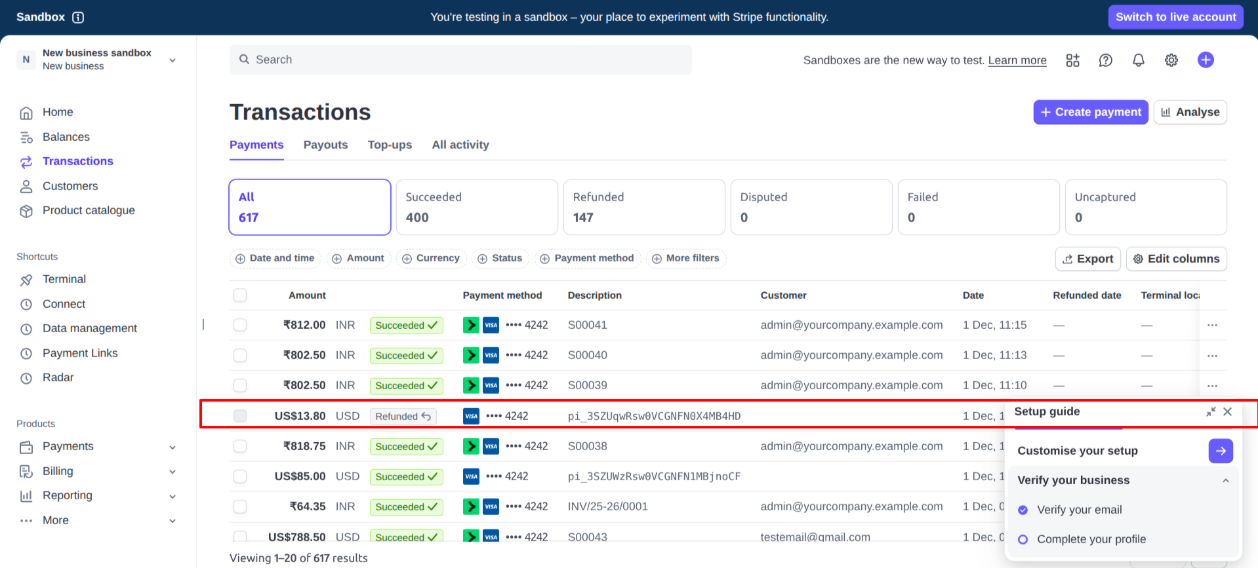
- If a payment is initiated by mistake, you can open the payment transaction in Odoo and click Refund to refund it in both Odoo and Stripe.