Odoo BigQuery Connector: Real-Time Sync, Automated Data Export & Advanced Analytics
Overview
The BigQuery Odoo Connector enables seamless two-way data synchronization between Odoo and Google BigQuery, supporting real-time updates, scheduled syncs, and multi-company environments. Businesses can export sales, CRM, inventory, accounting, and other key Odoo records into BigQuery for advanced analytics, BI dashboards, and centralized reporting. With custom filters, dynamic table selection, and partial field sync, users gain full control over what data is transferred. The connector also allows importing selected BigQuery data back into Odoo, ensuring every department works with accurate, up-to-date information. Automated workflows, comprehensive logging, and easy configuration make it ideal for companies looking to streamline data pipelines, eliminate manual exports, and improve decision-making with powerful BigQuery analytics.
Hot Features
◆ Real-Time Data Sync.
◆ Data Import & Update.
◆ Data Transformation Options.
◆ Easy-to-Configure Settings.
◆ Smart Data Availability Check.
◆ Continuous Synchronization.
◆ Seamless Communication.
◆ User-Friendly Notifications.
◆ Scheduled Data Import.
◆ Powerful Analytics.
◆ Dynamic Table Selection.
◆ Seamless Data Export Automation.
Features
◆ Real-Time Response Capture.
◆ Effortless Data Transfer.
◆ Automated workflows for periodic data syncing.
◆ Automatic Mapping.
◆ Comprehensive Logging in BigQuery.
◆ Scheduled Data Import/Export.
◆ Two-way sync between Odoo and BigQuery, enabling seamless data exchange in both directions.
◆ User-Friendly Setup and Configuration.
Setup Workflow
◆ Navigate to Settings , There you can find section for BigQuery Configuration named BigQuery .
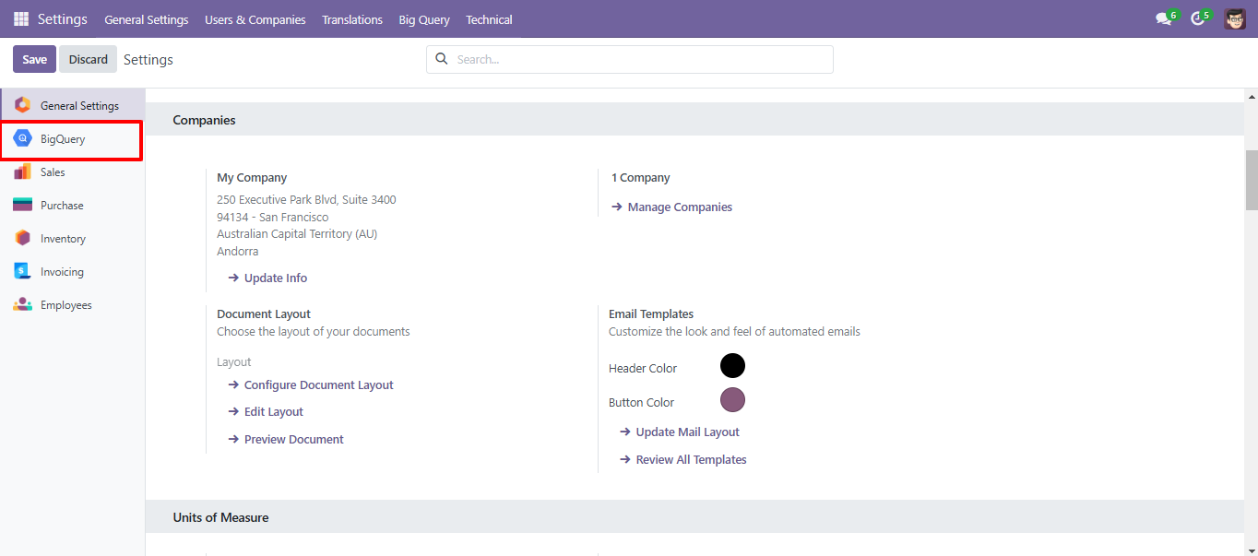
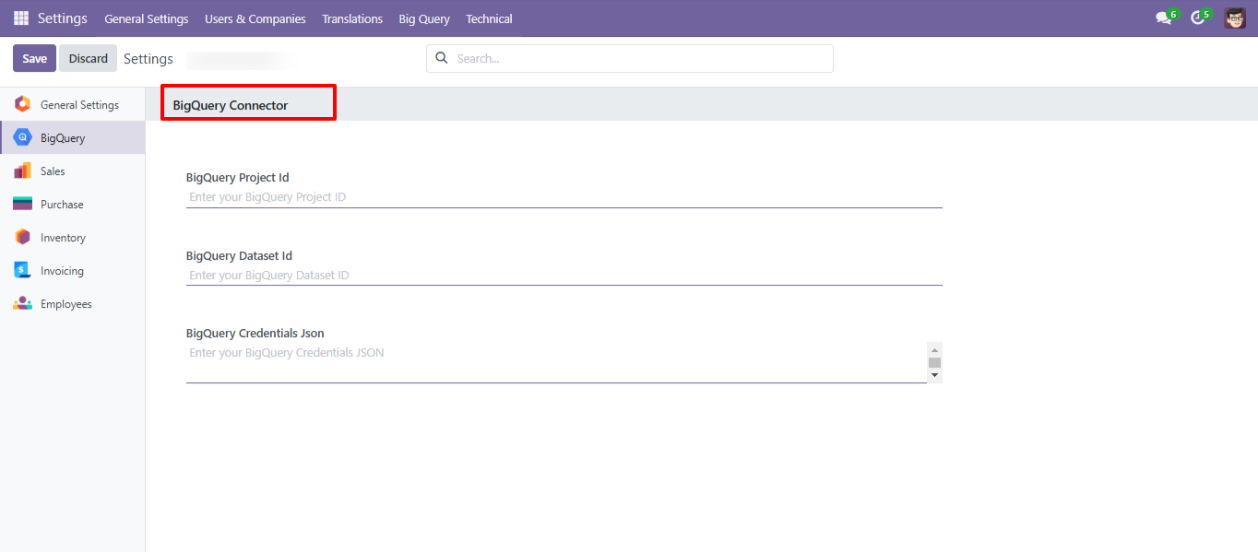
◆ By clicking that Section you will get page for configuration named BigQuery Connector.
◆ There You Can Configure BigQuery With Your Credentials.
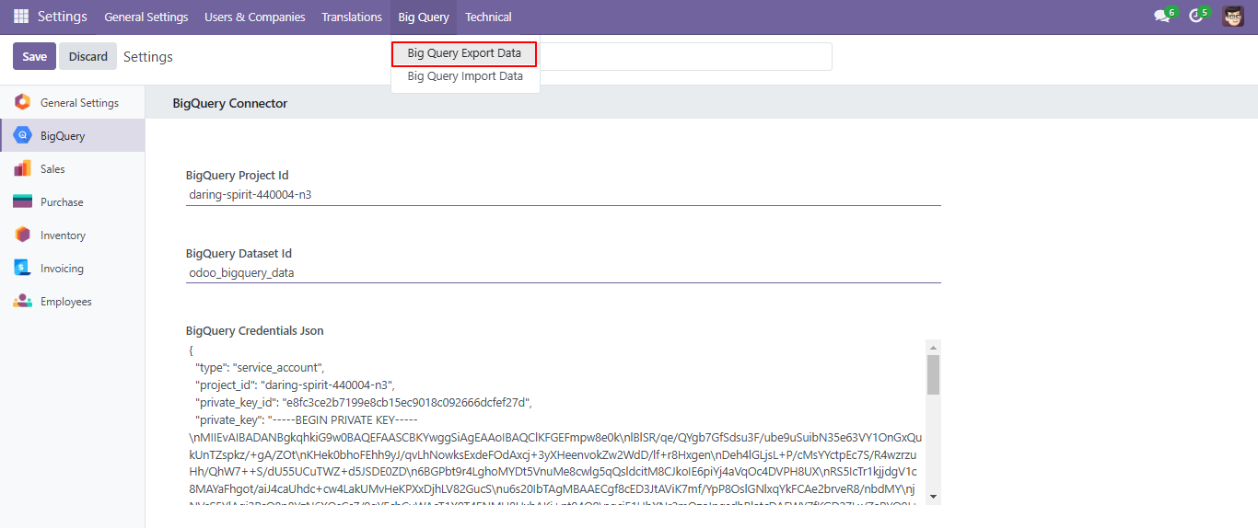
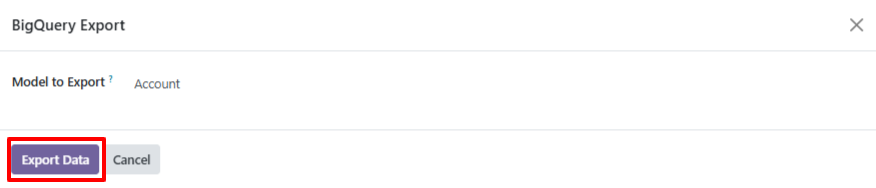
◆ Navigate to Settings >> BigQuery>>BigQuery Export Data.
◆ Select the table that you want to export to BigQuery then click on button Export Data.
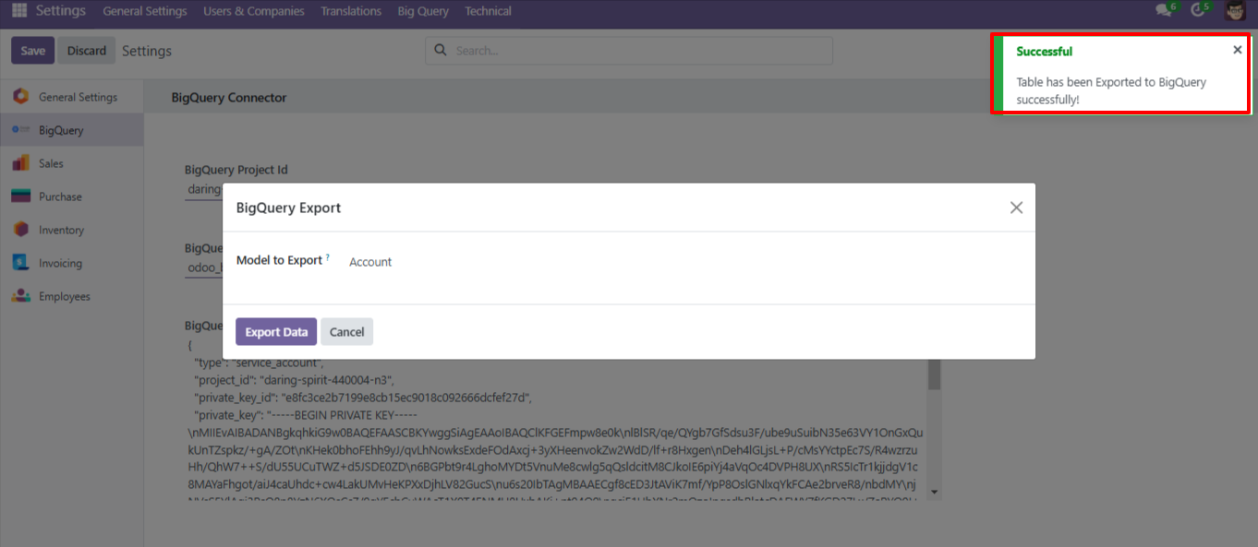
◆ Upon successful export of data from Odoo to BigQuery, a notification will appear, confirming that the table has been exported successfully. An example of the notification is shown below..
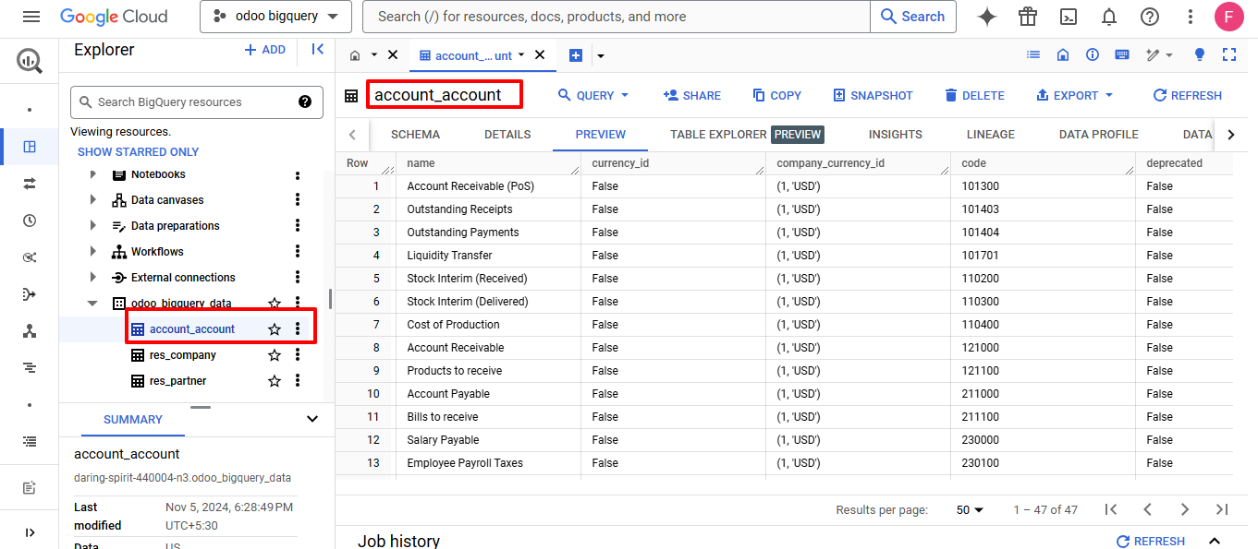
◆ The Exported Data Can Be found in BigQuery.
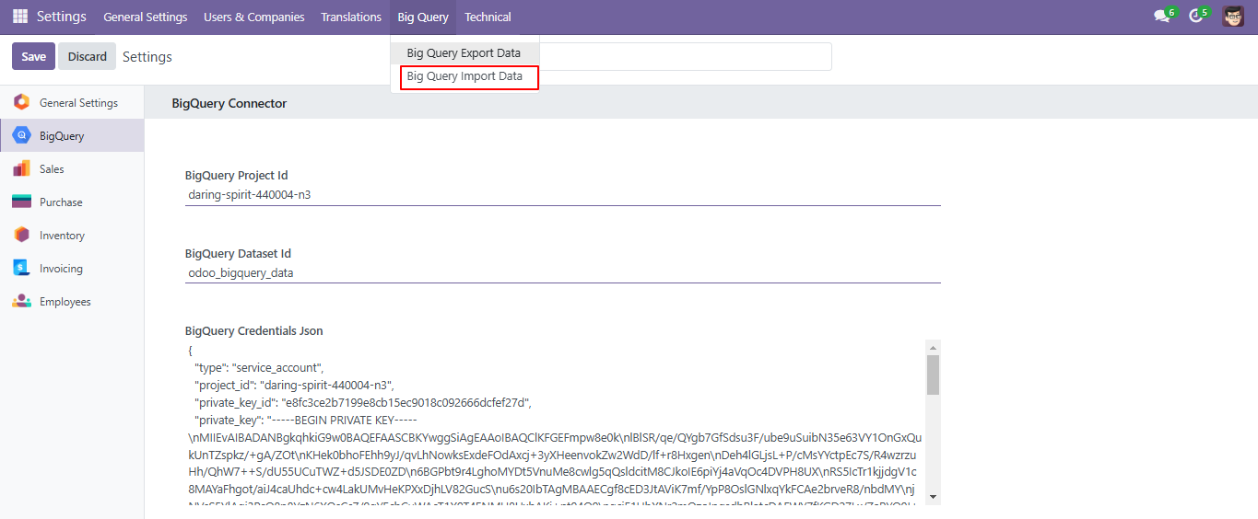
◆ Navigate to Settings >> BigQuery>>BigQuery Import Data.
◆ Select the table that you want to import from BigQuery to Odoo then click on button Import Data.
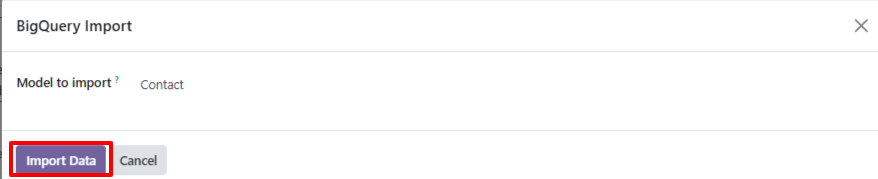
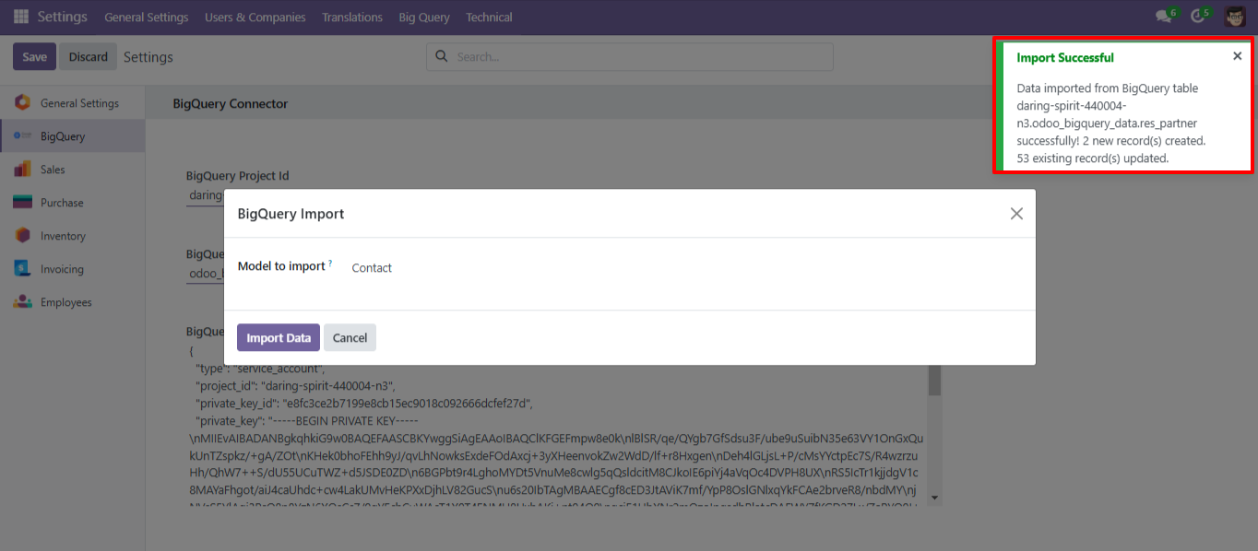
◆ Upon successful import of data from BigQuery to Odoo, a notification will appear, confirming that the table has been Imported successfully. An example of the notification is shown below..
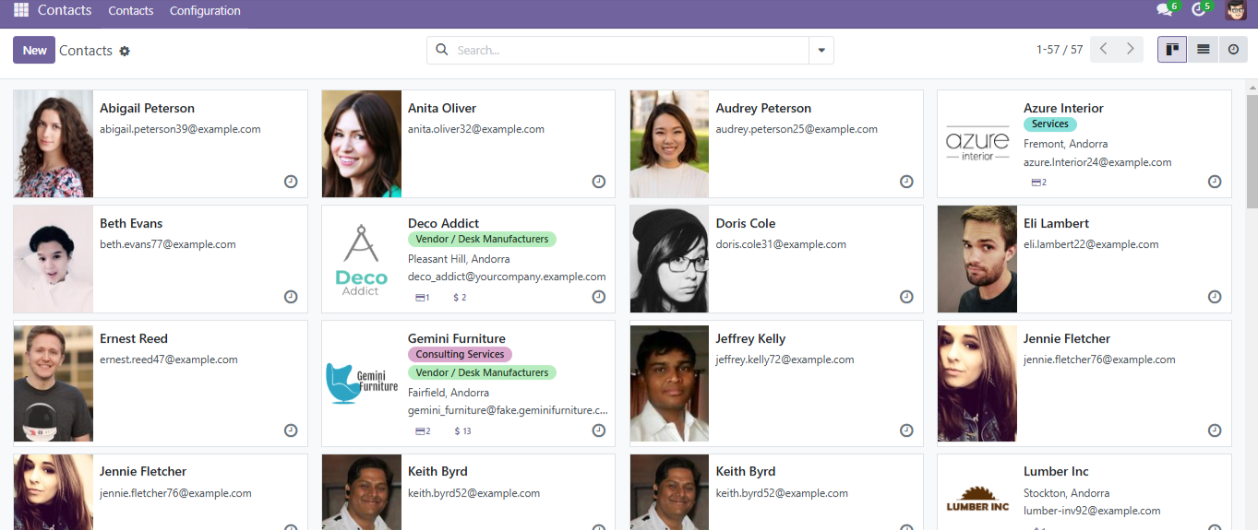
◆ The Imported Data Can Be found in Odoo.
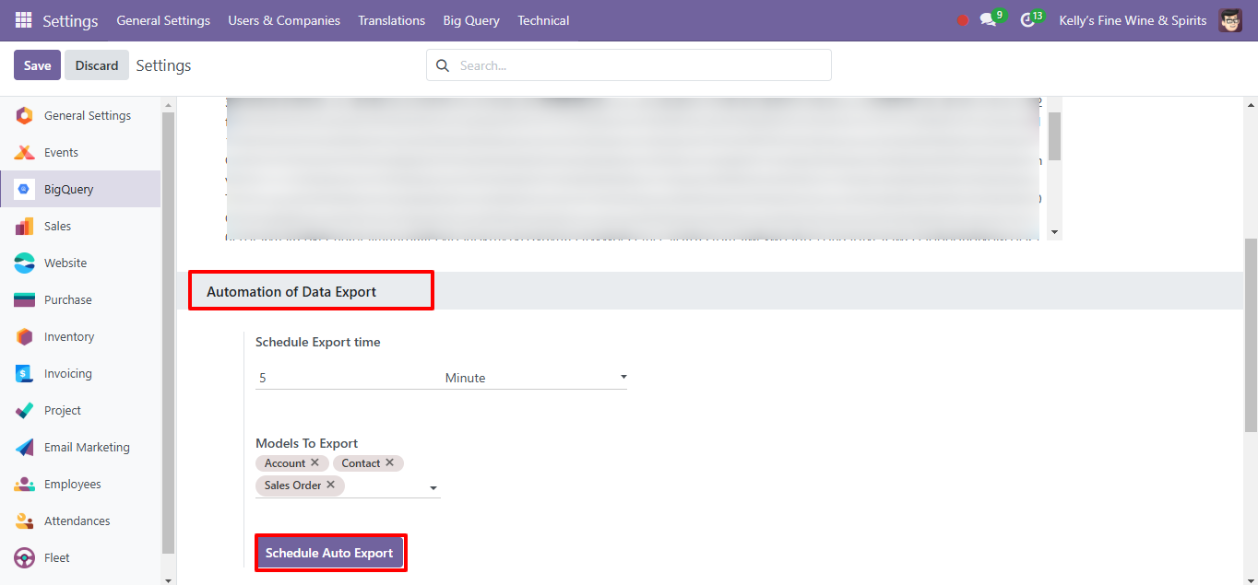
◆ Navigate to Settings , There you can find section for Automation of Data Export
◆ Enter the Time in which You want to Automatically Export data from odoo to Bigquery.
◆ Select The tables that you want to export >> click on button Schedule Auto Export
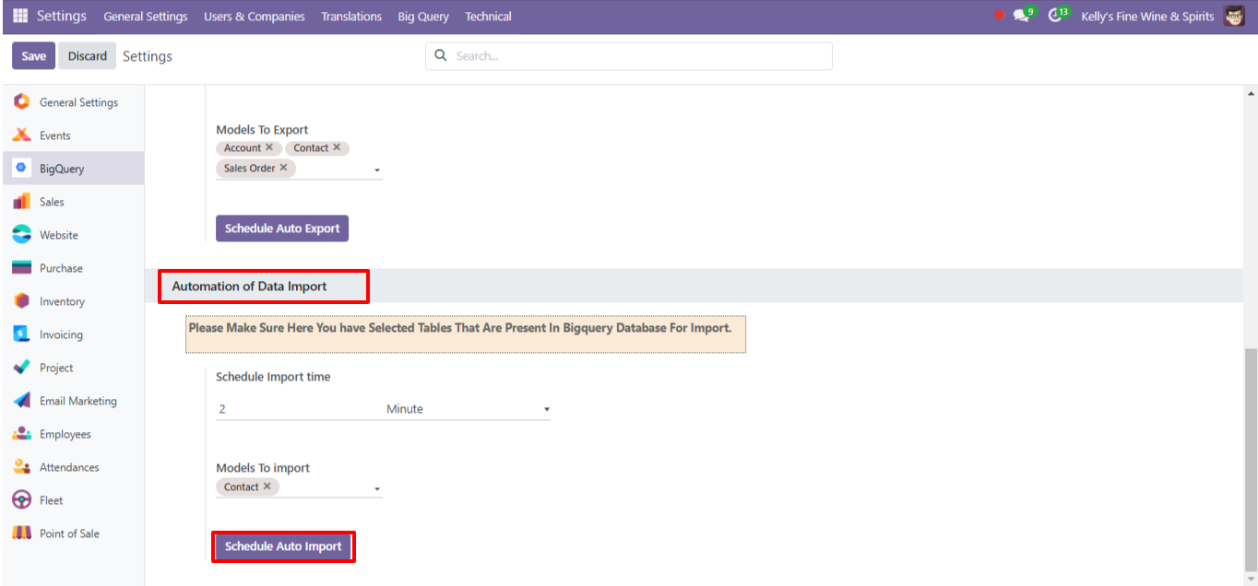
◆ Navigate to section for Automation of Data Import
◆ Enter the Time in which You want to Automatically Import data from Bigquery to odoo.
◆ Select The tables that you want to Import >> click on button Schedule Auto Import
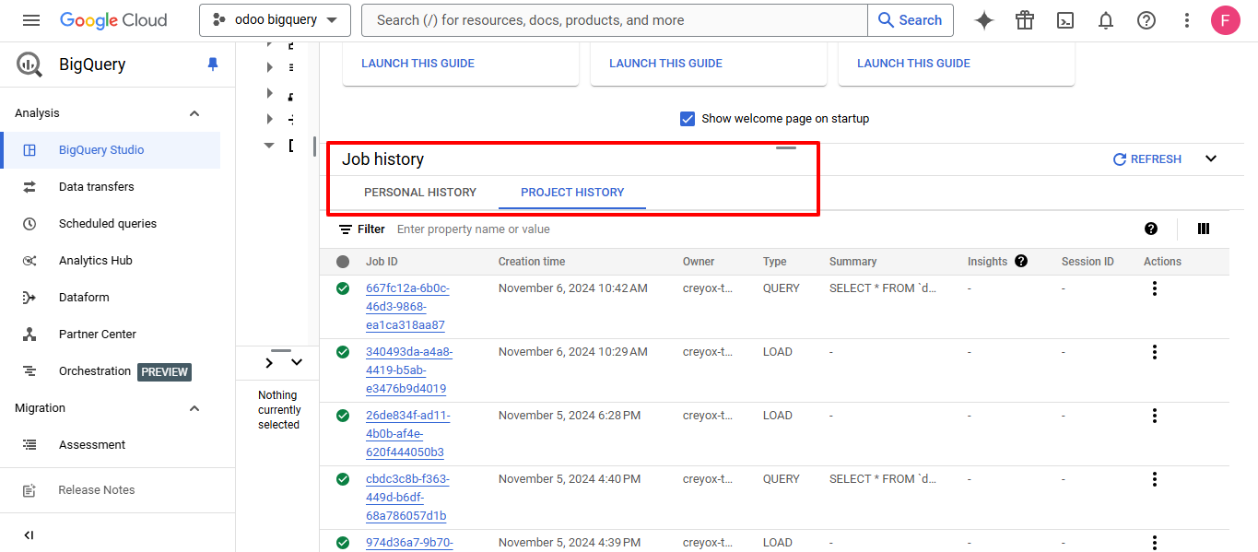
◆ Transaction logs for syncing tables between Odoo and BigQuery are available in BigQuery as shown below.